

Shadows and Borders
Use shadow presets, custom shadow controls, border presets, and exact border widths to match your product art direction.
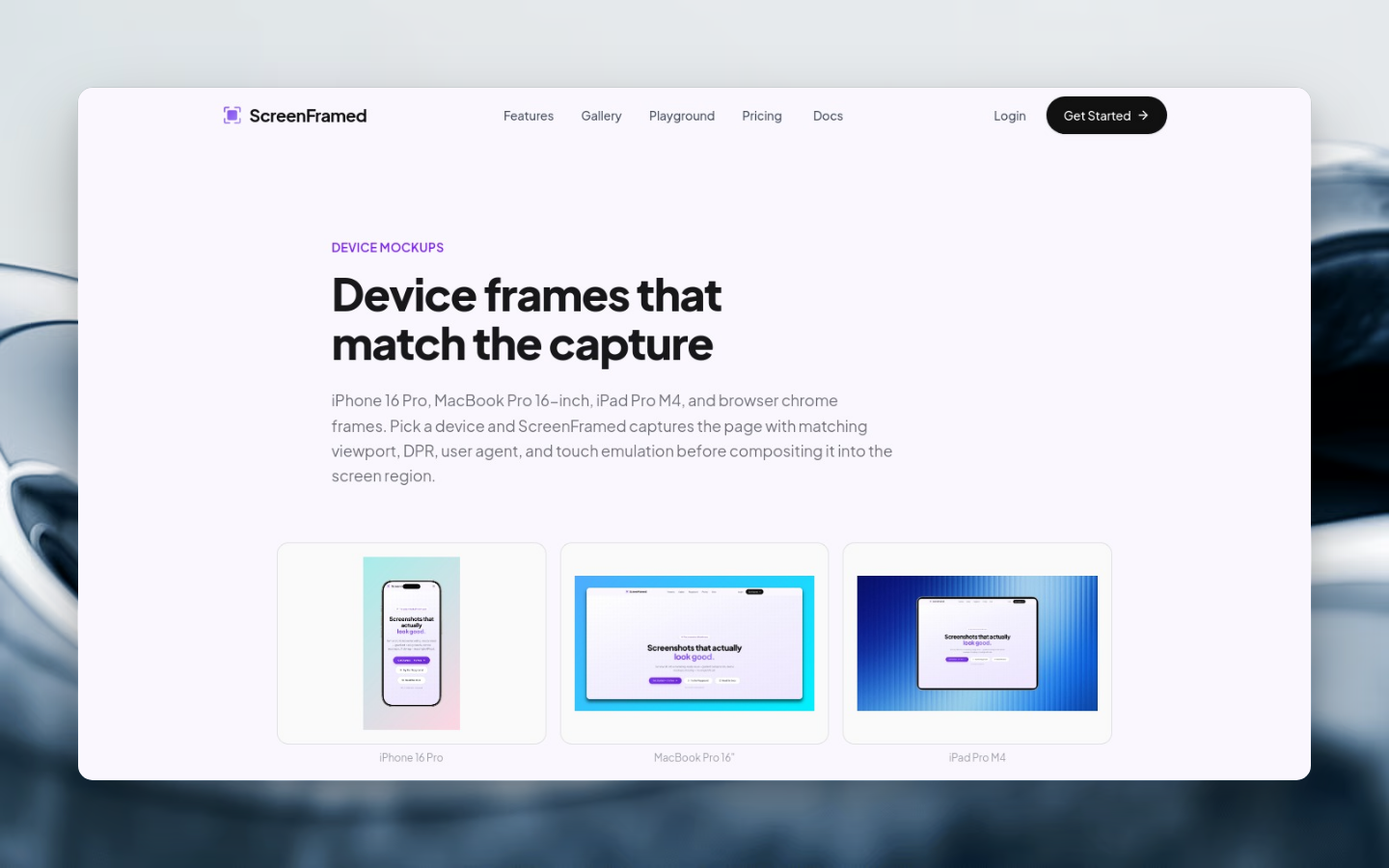
Shadows and borders make screenshots read as intentional product assets instead of pasted browser captures.
Shadow presets
| Value | Use for |
|---|---|
none | Raw or transparent exports. |
soft | Documentation and quiet product shots. |
hard | High-contrast editorial images. |
glow | Dark backgrounds and launch visuals. |
float | Product mockups that need depth without heavy contrast. |
json{ "url": "https://example.com", "shadow": "float"}
Custom shadows
Use numeric shadow fields when you need exact brand treatment. Setting shadow_blur switches the renderer to custom shadow mode.
json{ "url": "https://example.com", "shadow_blur": 42, "shadow_offset_x": 0, "shadow_offset_y": 24, "shadow_spread": -8, "shadow_opacity": 0.32, "shadow_color": "#2E1065"}
Border presets
| Value | Result |
|---|---|
none | No border. |
subtle | Light edge separation. |
bold | Strong outline for high-contrast layouts. |
glass | Soft translucent border for image or gradient backgrounds. |
json{ "url": "https://example.com", "border": "glass", "background_preset": "midnight"}
Exact borders
Use border_width and border_color when a preset is too broad:
json{ "url": "https://example.com", "border_width": 1, "border_color": "rgba(255,255,255,0.18)"}
For docs screenshots, start with shadow: "soft" or border: "subtle". For marketing images, start with shadow: "float" or glow.